
Why your Bill and Green Button Data are important
A recent bill along with your Green Button Data provides a highly-detailed view of your electrical use broken down by hour or quarter-hour increments. This level of granularity allows Baker to see your exact electrical use patterns and build a custom home energy system around it.
Most utility bills that you receive online or by mail contain a general summary of your electrical use on a month by month basis. In some cases, this level of detail is sufficient to design your solar system. But due to upcoming changes in how the utility charges for electricity, a look at your detailed energy use provided by Green Button Data, may be required to determine the best Solar solution.
Step 1: Login
Go to https://www.sce.com
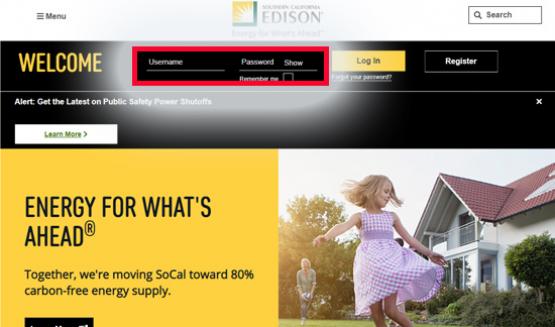
Enter your User ID and Password and click “Log In”
If you don’t already have an account, click to “Register”
Step 2: Billing and Payments
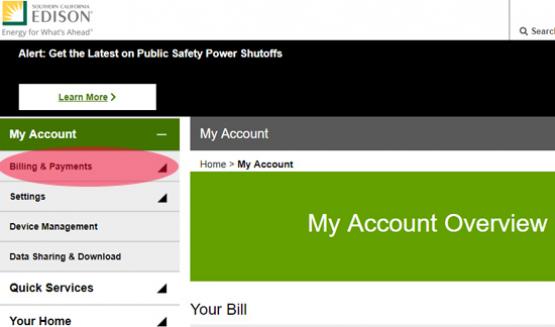
Click Billing & Payments in the side menu.
Step 3: Click View Bill
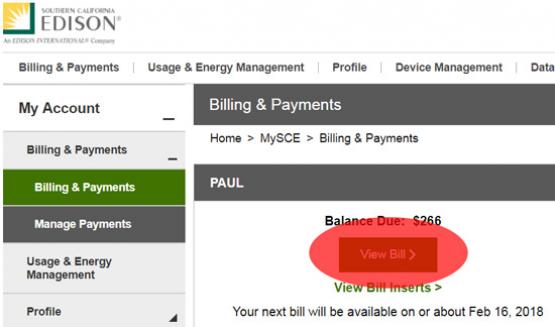
Click the “View Bill” link.
Step 4: Save PDF
A PDF file will open. Save it to your Desktop or other location you will remember.
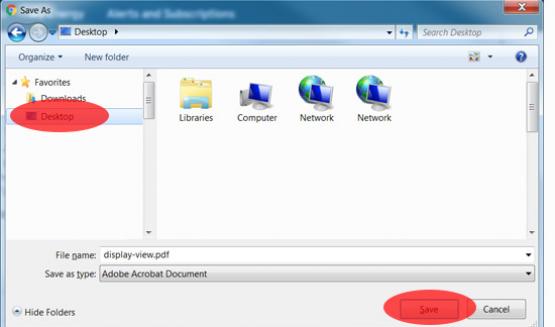
Your browser might automatically save it to your Downloads folder, or similar.
Step 5: Draft an Email
Open your email client: Outlook, Gmail, Yahoo…
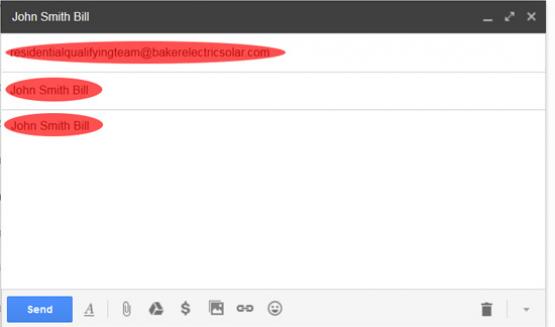
To: residentialqualifyingteam@bakerhomeenergy.com
Cc: (Optional) You may include your Baker representative
Subject: first-name last-name Bill
Body: simply repeat the subject, John Smith Bill
Do not send the email yet, see Step 6
Step 6: Attach Bill
Click the Attachment button in your email window
If you saved the file in Step 4, find and select the file
If you were not prompted to select a location in Step 4, your saved Bill file was likely saved to your Downloads folder
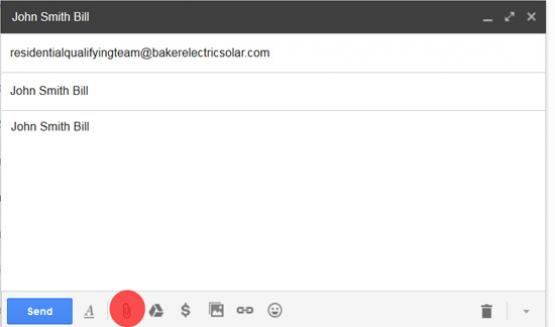
Once the file is selected, verify it is attached to the email and hit Send.
Now we move on to sending your Green Button data.
Step 7: Click Data Sharing & Download
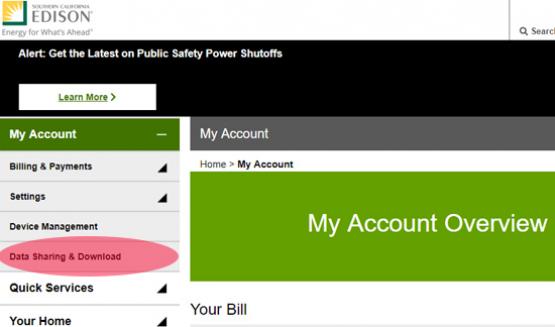
Click “Data Sharing & Download” that appears in the side menu
Step 8: Click Download
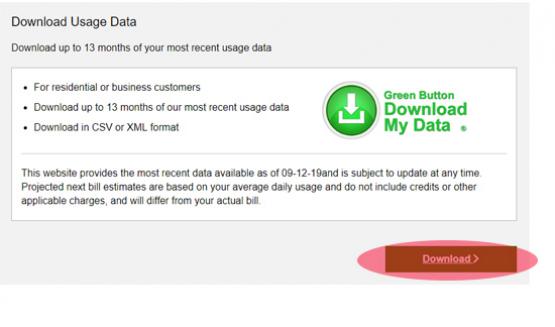
Scroll down the page and click the “Download” link.
Step 9: Select an Account
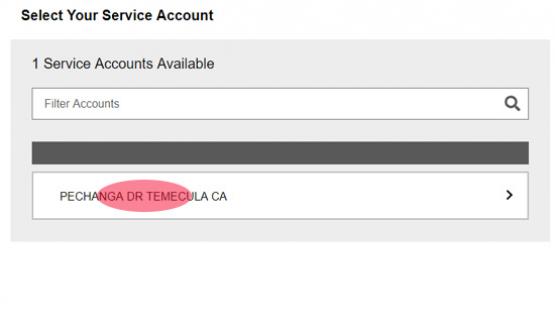
You might have more than one account, select the account you want data for
Step 10: Select Date Range
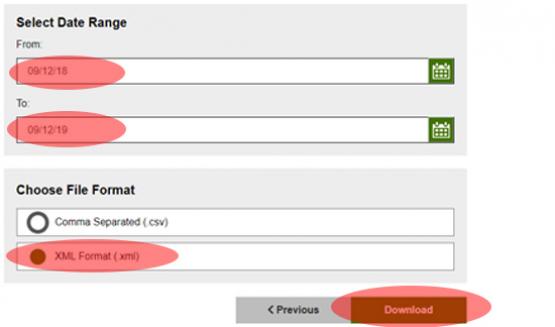
Select the last 12 months
Select CSV Format
Click “I’m not a robot” if it appears
Click “Download”
Step 11: Save to Computer
A window will open prompting you select a location on your computer to save the file
Select “Desktop” or any location you will remember
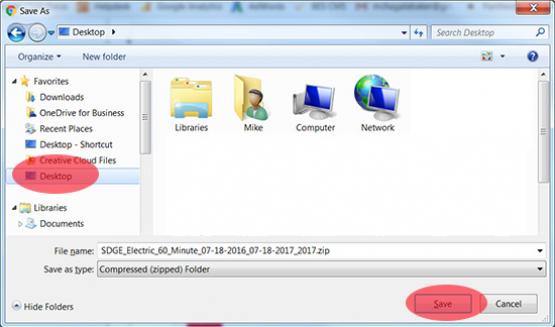
Click “Save”
Your browser might automatically save the file to your Downloads folder or similar location
Step 12: Compose an Email
Open your email client: Outlook, Gmail, Yahoo…
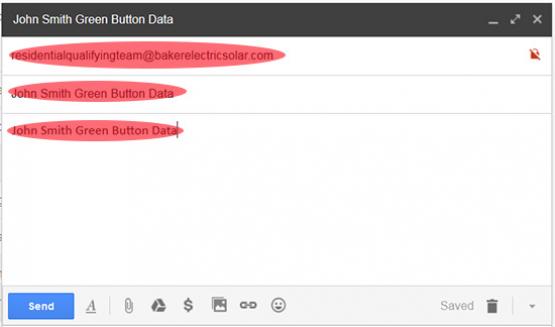
To: residentialqualifyingteam@bakerhomeenergy.com
Cc: (Optional) You may include your Baker representative
Subject: first-name last-name Green Button Data
Body: simply repeat the subject, John Smith Green Button Data
Do not send the email yet, see Step 7
Step 13: Attach Green Button File
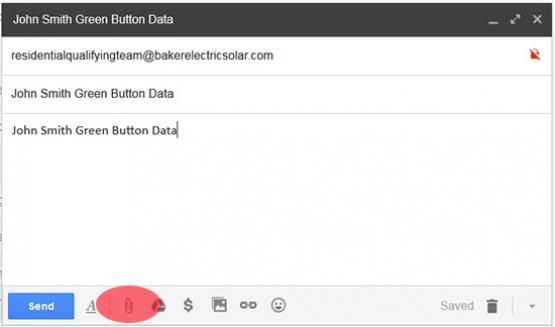
Click the Attachment button in your email window
If you were prompted to select a location in Step 6, find and select the file
If you were not prompted to select a location in Step 6, your Green Button file was likely automatically saved to your Downloads folder
Once the file is selected, verify it is attached to the email and hit Send