

If you’re new to the Tesla App, watch our walkthrough
Download or update it here, then follow the steps
1
Open the Tesla App
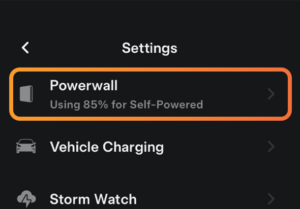
Navigate to Settings, then select Powerwall.
2
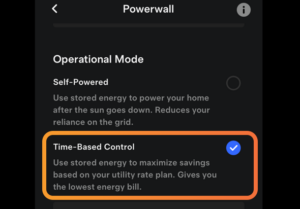
Set your Operational Mode to Time-Based Control.
This will optimize your battery to charge and discharge to yield the most savings on your energy bill based on your rate plan.
3
Define Your Rate Plan
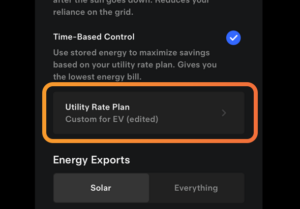
You will need to define the NBT rate plan in order for your Tesla Powerwall to charge and discharge at the appropriate times throughout the day.
To start, select Utility Rate Plan.
4
Select your Utility Provider
If you already have a Utility Rate Plan selected, you will need to select Start Over. Select your Utility Provider from the dropdown.

5
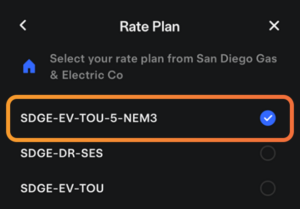
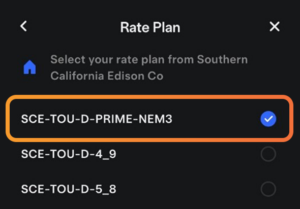
Select your Rate Plan.
This rate plan designed for NBT is SDGE-EV-TOU-5-NEM3 or SCE-TOU-D-PRIME-NEM3 (for SDGE and SCE respectively). Press Save.
6
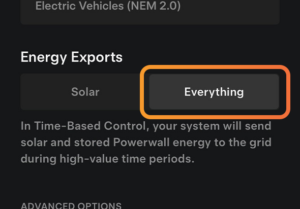
Select All Energy Exports
Upon return to the Settings menu, navigate to Energy Exports and select Everything.
7
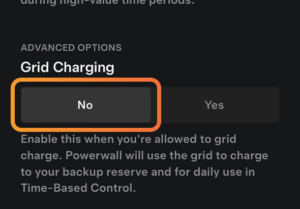
Deselect Grid Charging
Under Grid Charging, select No.
8
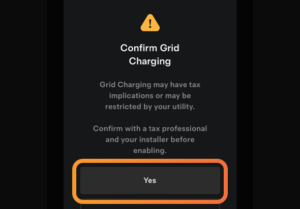
Confirm Grid Charging
When this notification comes up, select Yes.
9
You're all set!
Your Tesla Battery is optimized for savings on your energy bill.