Utility Companies

Share your SDG&E Bill and Green Button Data

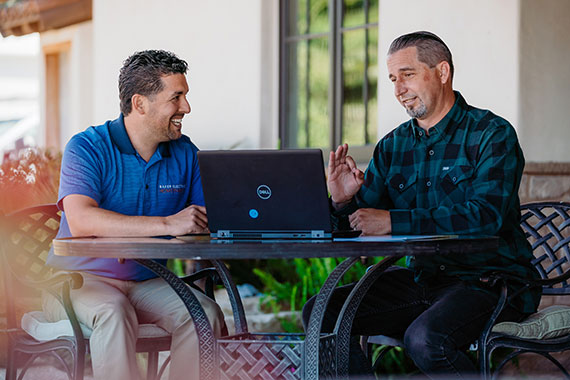
Two men discussing energy solutions at a table with a laptop, one wearing a Baker Home Energy shirt, outdoor setting.

Why your Bill and Green Button Data are important

A recent bill along with your Green Button Data provides a highly-detailed view of your electrical use broken down by hour or quarter-hour increments. This level of granularity allows Baker to see your exact electrical use patterns and build a custom home energy system around it.

Most utility bills that you receive online or by mail contain a general summary of your electrical use on a month by month basis. In some cases, this level of detail is sufficient to design your solar system. But due to upcoming changes in how the utility charges for electricity, a look at your detailed energy use provided by Green Button Data, may be required to determine the best Solar solution.

Downloading your SDG&E Billing Statement

Step 1: Login

Go to https://myaccount.sdge.com
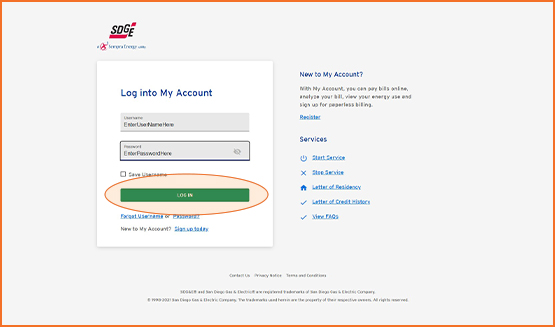
SDG&E login screen with fields for User ID and Password, and a prominent "LOG IN" button, relevant for accessing detailed billing statements for energy solutions.

Enter your User ID and Password and click “Log In”

Or click here “Register to Begin” to create an account.

Step 2: Click Bill Summary
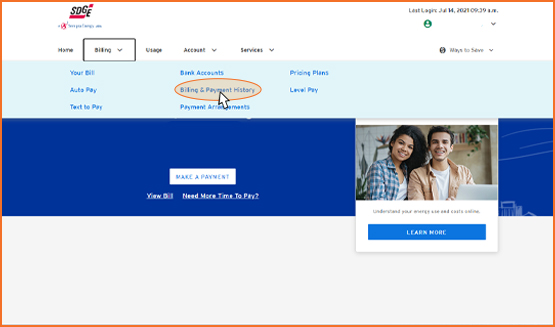
SDG&E website interface showing the "Billing & Payment History" option highlighted in the menu bar, relevant for accessing detailed billing statements for solar energy solutions.

Select “Billing” along the top menu bar, then select “Billing & Payment History”:

Step 3: Select Statement Date
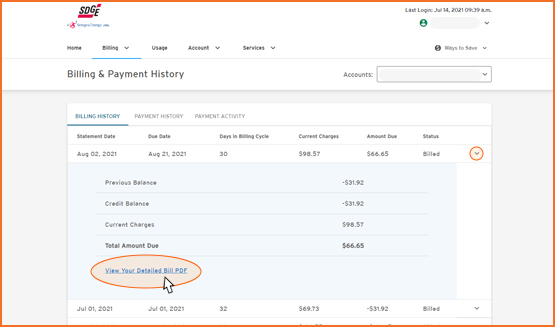
SDG&E billing statement interface showing billing history, current charges, and option to view detailed bill PDF, relevant for downloading energy usage data for solar solutions.

Click the down arrow to the right of the most recent bill and click “View Your Detailed Bill PDF”:

Step 4: Download Statement
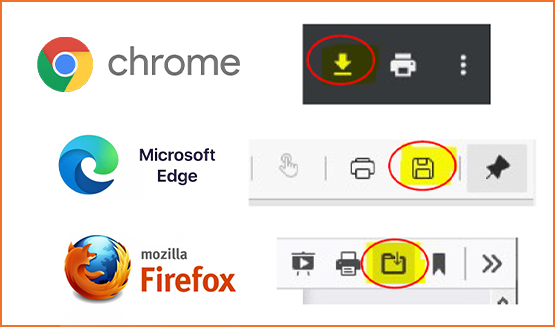
Icons for downloading and printing SDG&E billing statements from Chrome, Microsoft Edge, and Mozilla Firefox browsers, highlighting download options.

Click the Download/Save icon in the top right corner of your browser (if your internet settings
allow, it may automatically download)

Step 5: Save To Your Computer
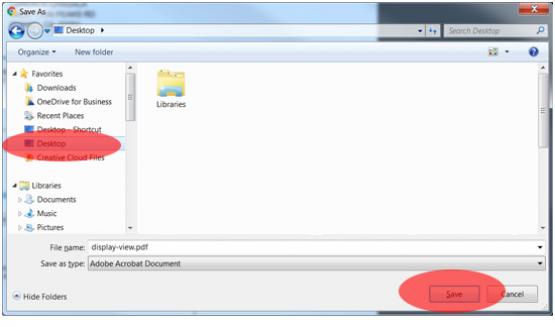
Save As window displaying "Desktop" option for file location and "Save" button for downloading SDG&E billing statement.

A window will open prompting you select a location on your computer to save the file.

If you are not prompted to select a location, skip this step.

Select “Desktop” or any location you will remember.

Click “Save”

Step 6: Draft an Email

Open your email client: Outlook, Gmail, Yahoo…
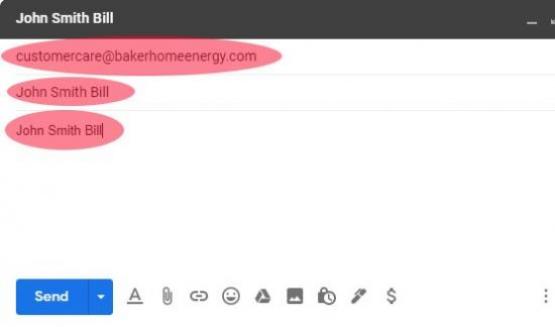
Email draft interface showing recipient address, subject line, and body text for sharing SDG&E bill with Baker Home Energy.

To: customercare@bakerhomeenergy.com

Cc: (Optional) You may include your Baker representative

Subject: first-name last-name Bill

Body: simply repeat the subject, John Smith Bill

Do not send the email yet, see next step.

Step 7: Attach the Document
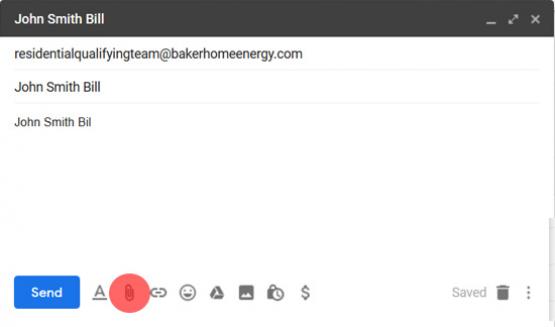
Email interface with subject line "John Smith Bill," recipient email for Baker Home Energy, and attachment icon highlighted, illustrating steps to share SDG&E bill.

Click the Attachment button in your email window

If you were prompted to select a Save location in a previous step, find and select the file

If you were not prompted to select a location in a previous step, your saved Bill file was likely automatically saved to your Downloads folder

Once the file is selected, verify it is attached to the email and hit Send

Now let’s send your Green Button data.

Downloading your Green Button Data

Step 1: Click the Link and Sign Into Your Account

SDG&E login screen with fields for User ID and Password, and a prominent "LOG IN" button, relevant for accessing detailed billing statements for energy solutions.

Click here to sign in to your SDGE account

Step 2: Green Button Connect My Data
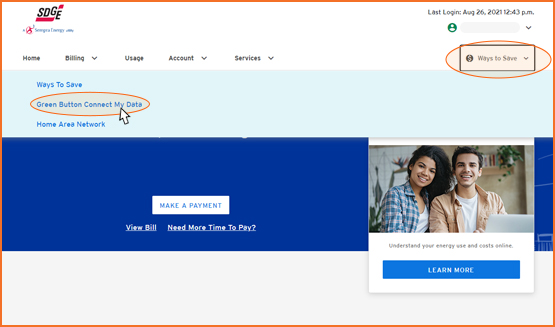
SDG&E website interface displaying "Ways to Save" and "Green Button Connect My Data" options, highlighting user navigation for sharing energy data with Baker Home Energy.
  1. Select Ways to Save dropdown
  2. Select Green Button Connect My Data

Step 3: Select Baker Home Energy
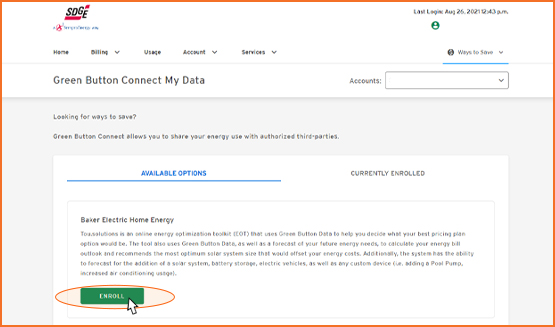
Green Button Connect My Data interface with Baker Home Energy option highlighted, featuring an "ENROLL" button for sharing energy usage data.


Step 4: Select Baker Home Energy

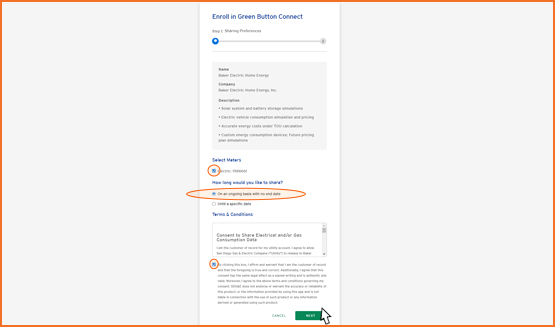
Enrollment form for Green Button Connect, featuring Baker Home Energy branding, options for sharing duration, and terms and conditions section.

Checkmark your meter.

Select “On an on-going basis, with no end date.”

Checkmark the “affirm and warrant that I am the customer of record” box.

Click Next at the bottom of the page.

Step 5: Complete Enrollment
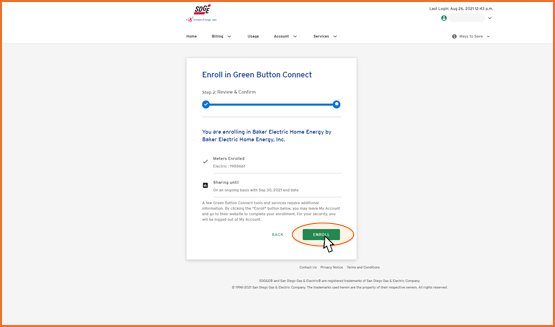
Enroll in Green Button Connect screen from SDG&E, displaying confirmation of enrollment with Baker Home Energy, featuring "Enroll" button highlighted for user action.

On the next page, click the Complete Enrollment button

Step 6: Fill Out Form
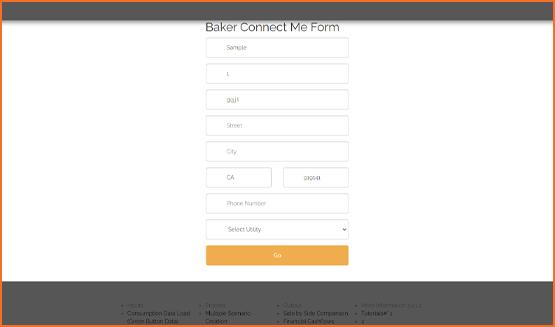
Baker Connect Me form for submitting contact information, including fields for name, address, phone number, and utility selection, emphasizing user engagement for energy solutions.

Fill out the form using your contact info, making sure the email address you enter here matches the email address Baker has on record.

Step 7: Sign In Again
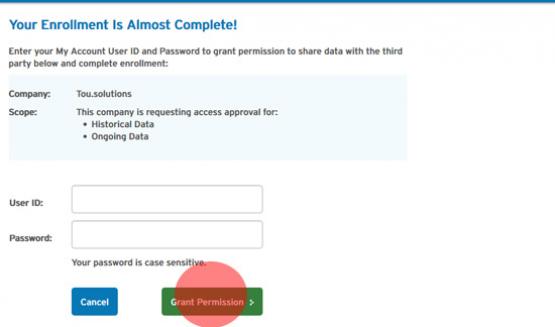
Enrollment confirmation screen for SDG&E data sharing, prompting user for account credentials with "Grant Permission" button highlighted.

The SDGE enrollment confirmation screen will load. Enter your SDGE login name and password one last time and hit the green “Grant Permission” button.

Congratulations, you have successfully sent your Green Button Data!

Person interacting with a home energy management system while holding a baby, emphasizing family engagement in energy solutions and solar technology.

Further Reading

Time of Use Rates: Transforming Solar Energy for Homeowners
solar panels on a San Diego roof
knowledge center

Time of Use Rates: Transforming Solar Energy for Homeowners

Estimated Read Time: 5 Minutes If you have solar but don’t have a battery, a recent utility rate change could make your solar system less…

Prepare for Wildfire Season: Home Battery Backup Solutions
aerial drone photo of a vegetation fire starting on a hill next to a freeway in San Diego
knowledge center

Prepare for Wildfire Season: Home Battery Backup Solutions

Estimated Read Time: 5 Minutes Summer has arrived in San Diego, and with it comes two familiar challenges: extreme heat and wildfire season. This…

What are SDGE Smart Meters and What Does it Mean for your Electric Bill?
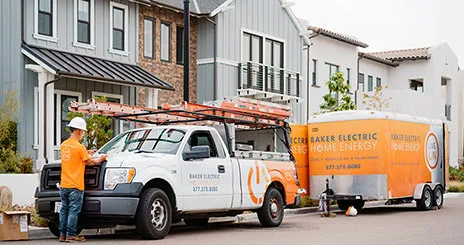
Technician in Baker Home Energy uniform working on truck with solar installation equipment outside residential homes.
knowledge center

What are SDGE Smart Meters and What Does it Mean for your Electric Bill?

Transitioning to SDGE smart meters brings advantages and questions. Learn how this upgrade enhances energy management and efficiency.

America’s Power Grid Is Under More Strain Than Ever, What That Means for Homeowners
america's power grid under strain
knowledge center

America’s Power Grid Is Under More Strain Than Ever, What That Means for Homeowners

The strain on the US power grid is growing due to rising electricity costs and escalating demand. Learn how this impacts your energy bills and the…